1. Introduction
OpenCBM is a library and a set of command line tools that allow to control old Commodore IEC devices like the famous 1541 floppy disk drive with modern computers. You can transfer disk image to and from old discs. As modern computers do not provide a IEC connector, OpenCBM allows to control adapters that attach to your PC. Older PCs use parallel port cables (like the XA1541 or XS1541) and newer ones use an USB adapter (XU1541 or XUM1541).
This pages shows you how to use OpenCBM on your Mac. As modern Macs only support USB connectors and no parallel ones, we focus on setting up the XU1541 or XUM1541 devices including the new ZoomFloppy hardware.
2. Software Installation
2.1 Install with MacPorts
- First you need to setup MacPorts (if you haven’t already installed it on your machine). Download and follow the Installation instructions there. Follow all steps there exactly and also install the XCode Development Environment – otherwise your build will fail!
- Open Terminal.app and change to a new directory:
> mkdir opencbm
> cd opencbm- Download one of these Portsfiles into this directory:
- The Portfile building the most recent OpenCBM Git Repository
- Use this only if you want a very bleeding edge, experimental version
- This version is not necessarily stable!
> curl -o Portfile https://www.lallafa.de/files/opencbm/Portfile-git- The Portsfile of the ZoomFloppy v2.0 Release (31.12.2011)
- Use this version for a ZoomFloppy board Firmware v7
- Stable Version for OpenCBM ZoomFloppy Release v2.0
- [Update 3.8.2013: Fixed libusb-legacy dependency]
> curl -o Portfile https://www.lallafa.de/files/opencbm/Portfile-v2- The Portsfile of the ZoomFloppy v1.0 Release (30.1.2011
- Use this version for a ZoomFloppy board with Firmware v6
- Stable Version for OpenCBM ZoomFloppy Release v1.0
> curl -o Portfile https://www.lallafa.de/files/opencbm/Portfile-v1 - The Portfile building the most recent OpenCBM Git Repository
- Check the downloaded Portfile: (The latest release may vary!)
> md5 Portfile MD5 (Portfile) = fc3ffb1466b4f3b3236dfe430c36340e <-- ZoomFloppy Release 2.0 on 31.12.2011 MD5 (Portfile) = ff721a10aee0de1c2303ba979b893267 <-- ZoomFloppy Release 1.0 on 1.7.2011 MD5 (Portfile) = 90fa77d1cedc98b19b00db50e3bbede4Â <-- current Git
- Make sure the checksum is correct.
- Now call MacPorts’ port command to install OpenCBM: When asked for a password enter your user’s password
> sudo port install
Password:
--->Â Computing dependencies for opencbm
--->Â Fetching opencbm
--->Â Verifying checksum(s) for opencbm
--->Â Extracting opencbm
--->Â Configuring opencbm
--->Â Building opencbm
--->Â Staging opencbm into destroot
--->Â Installing opencbm @0.4.99_20110130
--->Â Activating opencbm @0.4.99_20110130
--->Â Cleaning opencbm- That’s it! OpenCBM is now installed on your machine!
- Have a look at the tools installed:
> ls -1 /opt/local/bin/cbm*
/opt/local/bin/cbmcopy*
/opt/local/bin/cbmctrl*
/opt/local/bin/cbmformat*
/opt/local/bin/cbmforng*
/opt/local/bin/cbmread@
/opt/local/bin/cbmrpm41*
/opt/local/bin/cbmwrite@
2.2 Update
If you want to update your port then get an updated Portfile (see above) and issue the following commands (from the directory containing the Portfile):
> sudo port uninstall opencbm
> sudo port install
2.3 Configuration
After installation you need to configure OpenCBM. The most important file is /opt/local/etc/opencbm.conf. There you only need to set up the HW adapter you will use. For a XU151 you can leave the file as it is. For a ZoomFloppy or another XUM1541 HW device set xum1541 here:
> sudo pico /opt/local/etc/opencbm.conf
default=xum1541- Press “Ctrl+X” “Y” “Enter” to leave the editor and write the file
- That’s it. Your device is now configured!
3. Hardware Setup
3.1 ZoomFloppy Device
- Your purchased ZoomFloppy device is shipped fully setup. Nothing needs to be done here.
- Have a look at the ZoomFloppy User’s Guide for information how to connect the devices and your Mac.
- Don’t forget to directly attach the ZoomFloppy to your Mac. Do _not_ use a Hub in between!
ZoomFloppy Firmware Update
- If OpenCBM complains about a too old firmware then you can update the firmware with Nate’s firmware update tool
- Download the source code from Nate’s xum1541 Page
- Untar the source and enter the directory
- Compile the source with:
> make -f LINUX/Makefile
- The tool xum1541cfg is created in the current directory
- Now download the XUM1541 prebuild firmware from OpenCBM’s Git Repository. Pick a *.hex file suitable for the ZoomFloppy (e.g. xum1541-ZOOMFLOPPY-v06.hex).
- Update the firmware with this command (after attaching the device of cource):
> ./xum1541cfg update xum1541-ZOOMFLOPPY-v06.hex
3.2 Other Hardware for the XUM151 Firmware
- Nate Lawson’s Firmware supports different hardware implementations. Currently only the ZoomFloppy is commercially available (see above). All others are more or less prototype setups. In this case you need to build the hardware yourself.
- See the XUM1541 Homepage for details on how to build the HW.
- It works well with Macs and I use one myself built from a USBkey development board available from Atmel.
- If you built the HW you need to flash the firmware.
- You can use the dfu-programmer on your Mac to do so. Just install the dfu-programmer package from MacPorts:
> sudo /opt/local/bin/port install dfu-programmer- Now download the XUM1541 prebuild firmware from OpenCBM’s Git Repository. Pick a *.hex file (e.g. xum1541-AT90USBKEY-v02.hex).
- Enable the bootloader mode on your device by resetting it while holding the user button. Now you can flash the firmware with dfu-programmer:
> dfu-programmer AT90USB1287 erase > dfu-programmer AT90USB1287 flash xum1541-<yourdevice>-<version>.hex- That’s it. Reset your device again and the new firmware should be up and running.
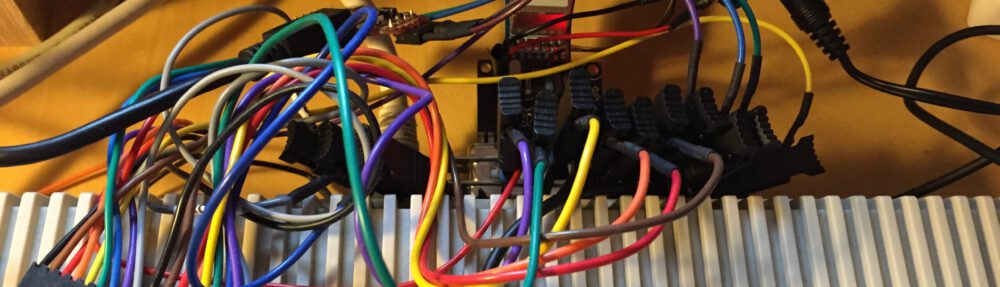
Here is a snapshot of my XUM1541 Adapter:

Lallafa’s XUM1541 Prototype

3.3 XU1541 Hardware
- The XU1541 firmware and hardware was developed by Till Harbaum. He discontinued the project but Spiro Trikaliotis kept the information on the web. See his XU1541 Page for details. There you can find schematics to build your own device.
4. Running OpenCBM
Hook up your trusty 1541 or 1571 drive to your USB adapter and connect the adapter to your Mac. Now let’s check if the device was detected by OpenCBM:
> cbmctrl detect
8: 1571 (XP1541)
Ah! My 1571 was detected (even with parallel interface hence the P in XP). Let’s look at the drive status:
> cbmctrl status 8
00, ok,00,00
Fine, everything looks good! Let’s have a look at the contents of a disk:
> cbmctrl dir 8
0 ."test/demo 1/85 " 84 2a
14Â Â "how to use"Â Â Â Â Â Â prg
8Â Â Â "how part two"Â Â Â Â prg
7Â Â Â "how part three"Â Â prg
...
8Â Â Â "load address"Â Â Â Â prg
7Â Â Â "unscratch"Â Â Â Â Â Â Â prg
5Â Â Â "header change"Â Â Â prg
402 blocks free.
00, ok,00,00You can copy files from the disk to your Mac with:
> cbmread 8 "how to use"
[Info] reading HOW TO USE -> how to use.prg
[Info] identified a 1571 drive
..../[Info] 00, OK,00,00
You can copy the whole disk as an image to a D64 image file with:
> d64copy 8 disk.d64
[Warning] growing image file to 683 blocks
1: *********************
2: *********************
3: *********************
...
33: *****************
34: *****************
35: *****************Â Â Â Â Â Â 100%Â Â 683/683
683 blocks copied.The other way round: Copy an existing disk image onto a real disk:
> d64copy myimage.d64 8So these are the most useful commands at a short glance. If you want to explore more of OpenCBM’s tools then you can call each cbm* binary with the –help switch to get more information on options and usage.
> cbmctrl --helpFurthermore, all commands have man pages with detailed descriptions. You call man:
> man cbmctrlNow enjoy OpenCBM on your Mac!
5. Page Updates
- 6.12.2012 – Updated sf.net git repository address in Portfile-v2 and Portfile in repository
Pingback: Lallafa’s Blog » XUM1541 and OpenCBM for Mac
Hi,
I had some strange problems when following your tutorial. First I had to change the directory to “cd ports” before starting “portindex”. Finnaly it works great, to some extend. Sometimes I get errors where the usb device is gone due to bad errorhandling. Generally speaking I would really love to have a tool that is like sta commander on mac. 😉 I am no coder at all, but would love to assist when it comes to UI and graphics in general. What do you thing? One package, whith a proper installer and a mac like interface for mousepushers like me. Besides: Great tut. Without it (and a firends help) I would have booted my mac to the darkside.
Hi. Just can´t install it. When I type “portindex” I only get zeros. No matter what path I´m in. What has the name of the portfile to be like? When I download it, it´s just a Text-file. I also “hand-typed” it with vim, but portindex does nothing. What am I doing wrong?
Ok, several problems here. I agree with some of the other posts, these instructions are not 100% correct, and the other major problem is that the Portfile link seems to be dead.
Unfortunately the Mac OS X Portfile install of OpenCBM requires to fetch the Portfile and all install resources from the CVS located at SF.net. Due to the ongoing lockdown of the SF.net CVS services this install method currently doesn’t work. I hope SF.net soon fixes the issue…
I reworked the whole page to make install for ZoomFloppy users more obvious.
I also put all required source code on my site to work around the SF.net downtime.
I hope setting up is now easier for you… If still problems arise please give me a note what needs to be added to this page.
Perfect, this works now. Thanks for everything man.
Pingback: Nibtools on Mac added and OpenCBM on Mac updated « Lallafa’s Blog
Hi, I’m getting this error:
RPV-iMac:opencbm rpvietzke$ sudo port install
Password:
—> Computing dependencies for opencbm
—> Fetching cc65
—> Attempting to fetch cc65-sources-2.13.2.tar.bz2 from http://ykf.ca.distfiles.macports.org/MacPorts/mpdistfiles/cc65
—> Verifying checksum(s) for cc65
—> Extracting cc65
—> Applying patches to cc65
—> Configuring cc65
—> Building cc65
Error: Target org.macports.build returned: can’t read “build.cmd”: Failed to locate ‘make’ in path: ‘/opt/local/bin:/opt/local/sbin:/bin:/sbin:/usr/bin:/usr/sbin’ or at its MacPorts configuration time location, did you move it?
Error: The following dependencies failed to build: cc65 libusb-legacy
Error: Status 1 encountered during processing.
Any thoughts? looks like it can’t find the file.
I just got my ZoomFloppy and followed the instructions to install Opencbm and configure the ZoomFloppy for my Mac and everything seems to work fine except for when I type >sudo pico /opt/local/etc/opencbm.conf
I get
default=xu1541
not
default=xum1541.
And then when I go and see if my drive is detected I get “ERROR: No xu1541 device found”. Any ideas how I can fix this?
Thanks so much, Jeff
I did get zoomfloppy configured to work with a 1571 finally. Will it work with a CMD FD-2000 drive? I seem to be having some problems with that so far.
Thanks for any help anyone can give me with this.
So sorry to bother you again. Couldn’t get the FD-2000 to work correctly but work around it just by transferring files to 1541 disc and then to d64 images and then using fcopy+ program from CMD to copy files to d71 or d81 images. The only problem is that the REL files I have , fcopy+ won’t copy. Any reason why you think I am having this problem? Any help would be greatly appreciated.
I just got a ZoomFloppy and installed the software listed here. After a few tries, I got it compiled. (might be easier to provide binaries!!)
Anyway, now I’m getting an error about firmware too low.
% cbmctrl status 8
xum1541 firmware version too low (6 < 7)
please update your xum1541 firmware
Does the ZoomFloppy need to be updated?
Hi Paul,
yes the error messages tells you that the openCBM binaries require a newer firmware.
Just download and build Nate’s firmware upgrade tool from his page: xum1541.
I’ll update the page to mention this procedure…
Unbelievable — this is the only useful openCBM/zoomFloppy tutorial on the entire internet. And for OSX, no less. Thanks for taking the time.
Hi Chris,
thanks for the great docs =) I ran into an similar error like the one Paul reported – just vice versa 😉
% cbmctrl status 8
xum1541 firmware version too high (7 > 6)
please update your OpenCBM plugin
I had no luck in finding a newer version of the plugin. Any hints what to do now?
Fixed it 😉 Just had to re-install opencbm from the GIT. Nate helped out in a great way over there at the Google usergroup. Thanks for your works, it’s very appreciated!
Dumb question… how do I ‘launch’ OpenCBM from a new teminal window (after restarting my computer)? 😉
Dumb question… how do I ‘launch’ OpenCBM from a new Terminal window (after restarting my computer)? 😉
My Terminal window looks like this:
Hi,
some bug reports…
“2.2 Update
If you want to update your port then get an updated Portfile (see above) and issue the following commands (from the directory containing the Portfile):
> sudo port uninstall opencbm
> sudo port instal”
This second would be “> sudo port install”
Another problem encountered…
“Download one of these Portsfiles into this directory:
The most recent Portfile found in OpenCBM’s Git Repository
The Portsfile of the ZoomFloppy v2.0 Release (31.12.2011)
The Portsfile of the ZoomFloppy v1.0 Release (30.1.2011)”
I’ve obtained some errors with my OS X Leopard… the working way is to install before “The most recent Portfile found in OpenCBM’s Git Repository” and later others ZoomFloppy Portfiles.
Greetings from Hokuto Force! 😉
Power Mac users now have a versions that works, since I couldn’t get this one to work with my IBook.
http://www.floodgap.com/software/ppcp/
Definitely had to “sudo port install libusb-legacy”…
Hi Lallafa,
just managed to get my xu1541 to work with my mountain lion imac. no problems at all, just followed your instructions.
get work, thank you!
kc
Hello! Thanks for the efforts. OpenCBM compiled fine and works with ZoomFloppy now! Thanks. A question though: have you ever managed to get it work with VICE? I compile my vice sources myself and do NOT use the bundles. Just regular unix style commands (–disable-bundle) but I always get “Real Device: Real device emulation is not available!” whenever I try to set the access to real device.. Any clues? Thank you in advance.
Replying to myself: There are two issues with VICE (as of 2.4). First it looks for opencbm library at a hardcoded (and invalid – sic!) path. To correct the problem one has to modify #define OPENCBM_SO_NAME in opencbmlib.c file. Second issue is that it supplies its own (sic!) opencbm.h file in its source tree. This file in VICE’s sources is outdated and causes compatibility problems on 64-bit systems. Removing the file and its entry from noinst_HEADERS secion of Makefile allows the build process to find the correct header file (of course include path has to be set properly!). After those modifications OpenCBM works fine from within VICE!
The ZoomFloppy v2.0 portsfile doesn’t work for me. After I download curl -o Portfile http://www.lallafa.de/files/opencbm/Portfile-v2 into the directory (and verify it’s there with the md5 Portfile command), I get the following after I run sudo port install:
—> Computing dependencies for opencbm
—> Building opencbm
Error: org.macports.build for port opencbm returned: command execution failed
Please see the log file for port opencbm for details:
/opt/local/var/macports/logs/_Users_robertdavies_opencbm/opencbm/main.log
To report a bug, follow the instructions in the guide:
http://guide.macports.org/#project.tickets
Error: Processing of port opencbm failed
I’m not sure what to do next. My ZoomFloppy is running firmware v7.
Any help would be much appreciated.
Thanks! 😉
@Robert: as suggested in the error message please have a look in the main.log file… There a detailed error report is given.
@Lallafa: I did read the log which is long and extensive… I can’t make sense of it. Is there any jargon in particular I should be looking for? Cheers.
Just post the last 10 or 20 lines of the log here… Then I’ll have a look.
Pingback: Updating the ZoomFloppy Firmware on OS X | The Pyro
Pingback: C64 Daten von Floppy (1541) mit OpenCBM auf Mac sichern | nullseite.de
OpenCBM doesnt compile (doesnt exist) in 2022
No working ARM macOS Ventura
Pingback: Zoomfloppy Driver Issues | bavatuesdays
Hi Christian,
First thank you for this post. It worked a treat for me back in 2016, and I was happily running my Zoomfloppy on my Mac back then, but seven years later things have changed, and I tried to document the issues I am having recently in a post on my blog https://bavatuesdays.com/zoomfloppy-driver-issues/ I understand this is an old project and may be long of your radar, but i figure a ping here on your site to at least say thanks, and maybe get a sense if you have any idea at all why the version 2 code seems to be borking.
Anyway, thaks in advance for any ideas you might have
I can’t get this running?!
I did everything as written, including. sudo port install
Password:
Then i get “sudo: port: command not found
christianvonallmen@christians-macbook-pro ~ % ”
What am i doing wring?